
For new 41 Labs clients
Go live on WhatsApp in 3 steps
This guide shows each step of Get started, with pictures. It takes about 8 minutes in all. If something goes wrong, each problem has a fix below.
- 1Pay for your planabout 2 minutes
- 2Connect your WhatsApp numberabout 5 minutes
- 3Choose who gets called inabout 1 minute
One step is open at a time. You can stop and come back later. Done steps stay done.
Before you start
You said yes on a call with 41 Labs. Then you get a WhatsApp message from +65 8012 4848 with a link.
- Tap the link. It works one time, for 7 days.
- Set a password.
- You land on Get started.
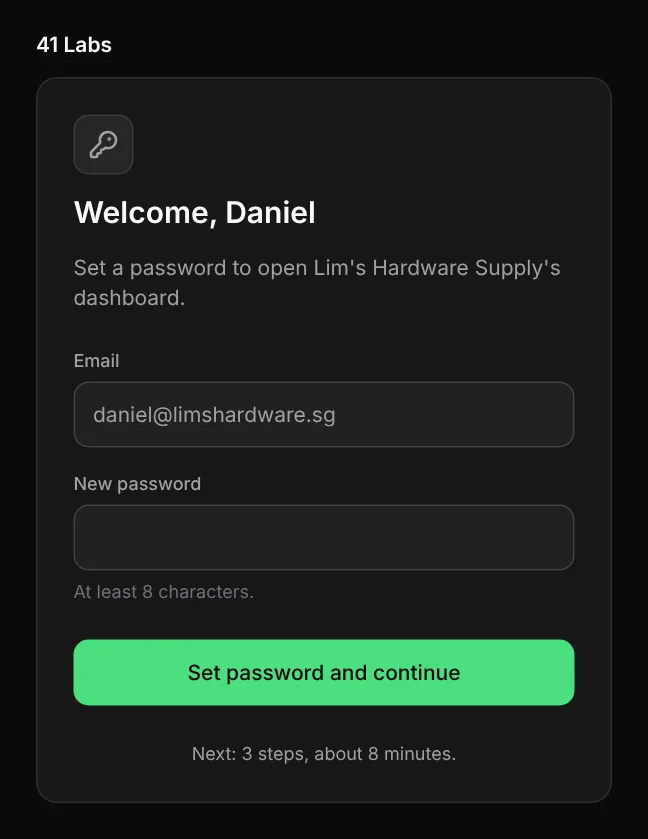
If the link does not work, it is usually older than 7 days or you used it before. Ask for help and ask for a new link.
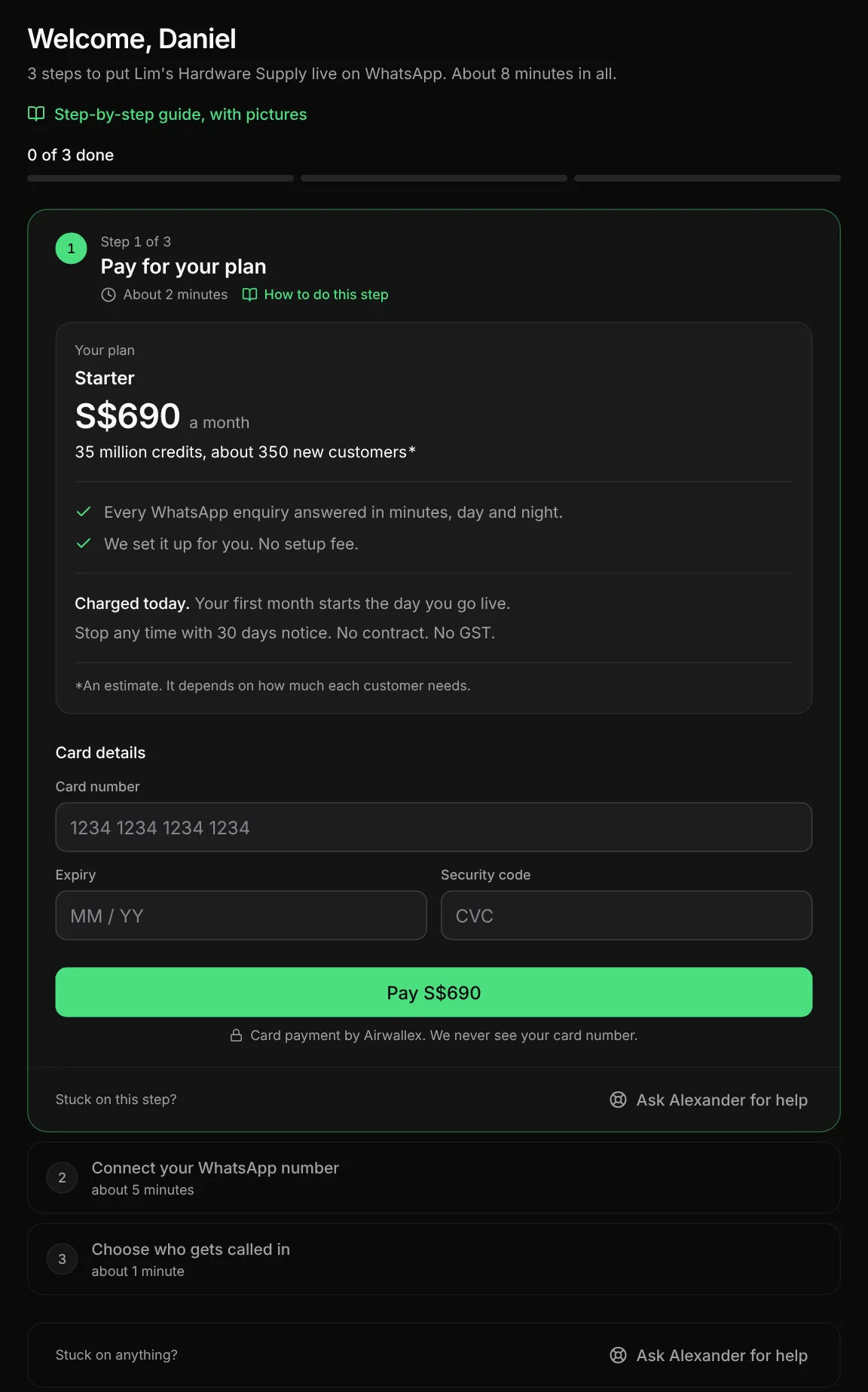
1Pay for your plan
About 2 minutes41 Labs sets your plan. You cannot choose a different plan on this screen. If the plan is not the one you agreed, ask for help before you pay.
- Type your card number, the expiry date and the security code. You do this on the same page.
- Tap Pay.
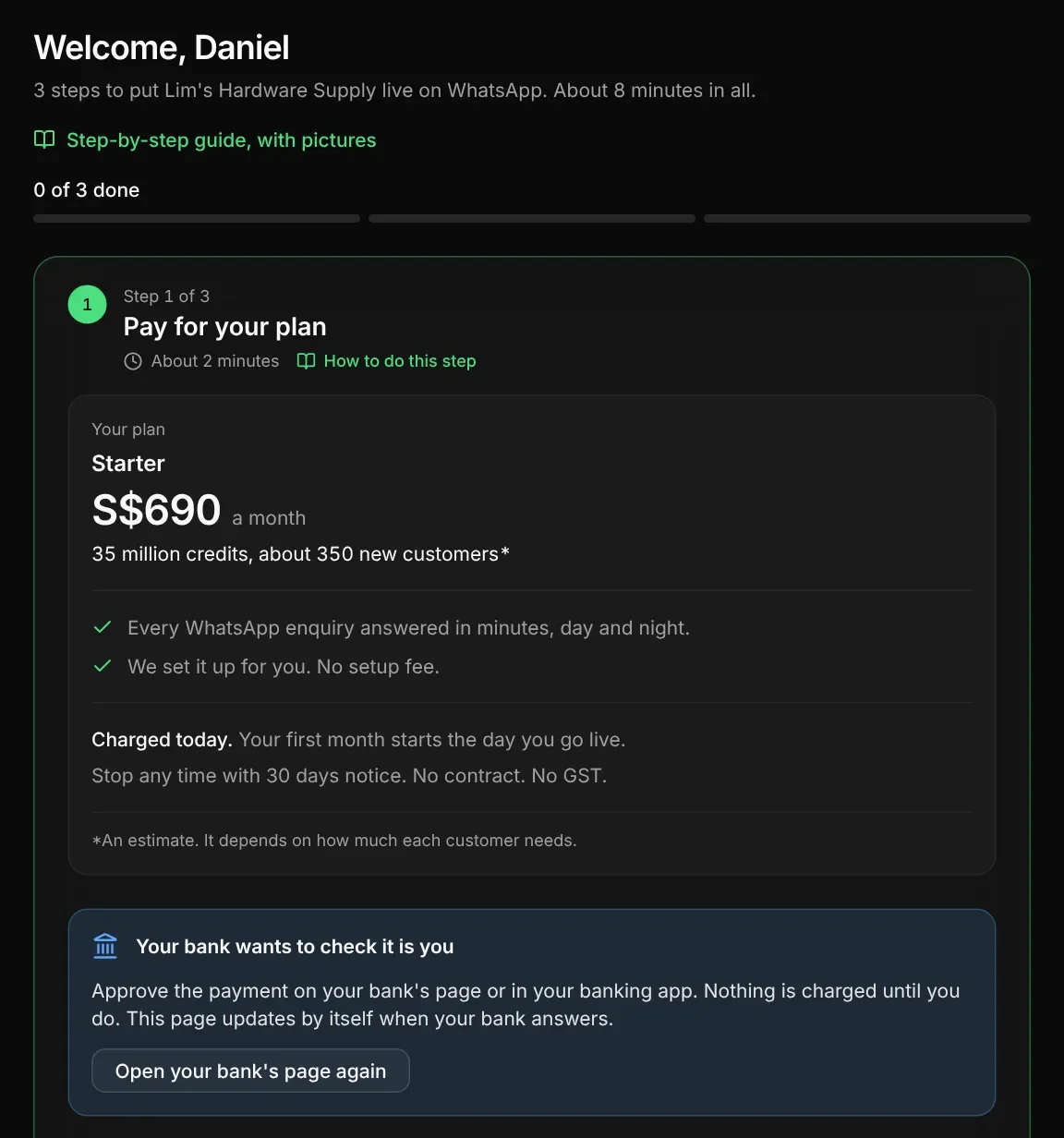
- Your bank can ask for its extra check. The check opens on the same screen. Do the check.
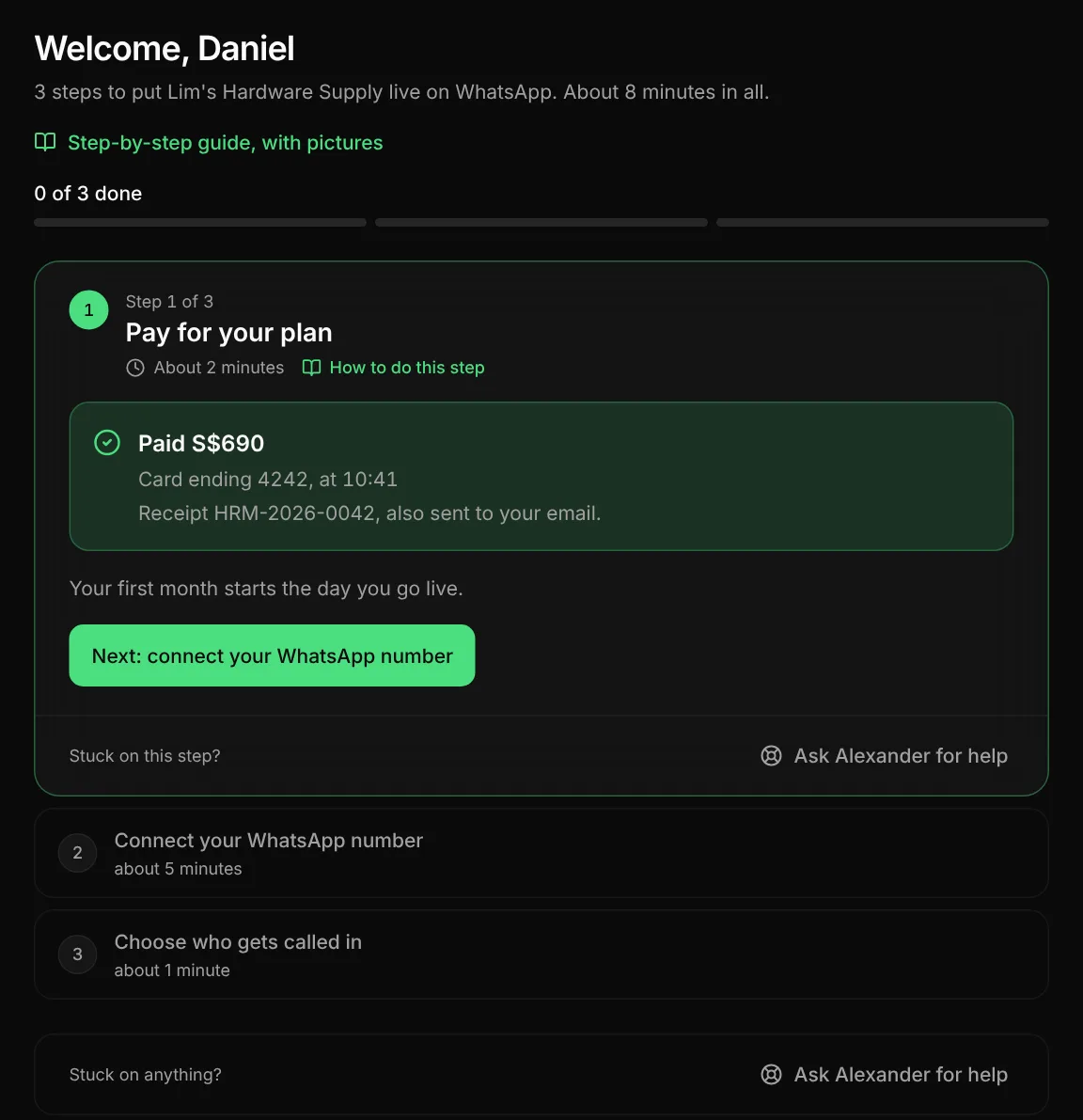
When the payment is done, the step shows Paid S$690, card ending 4242 and a receipt number. You also get the receipt by email. Your first month starts on the day you go live, not on the day you pay.
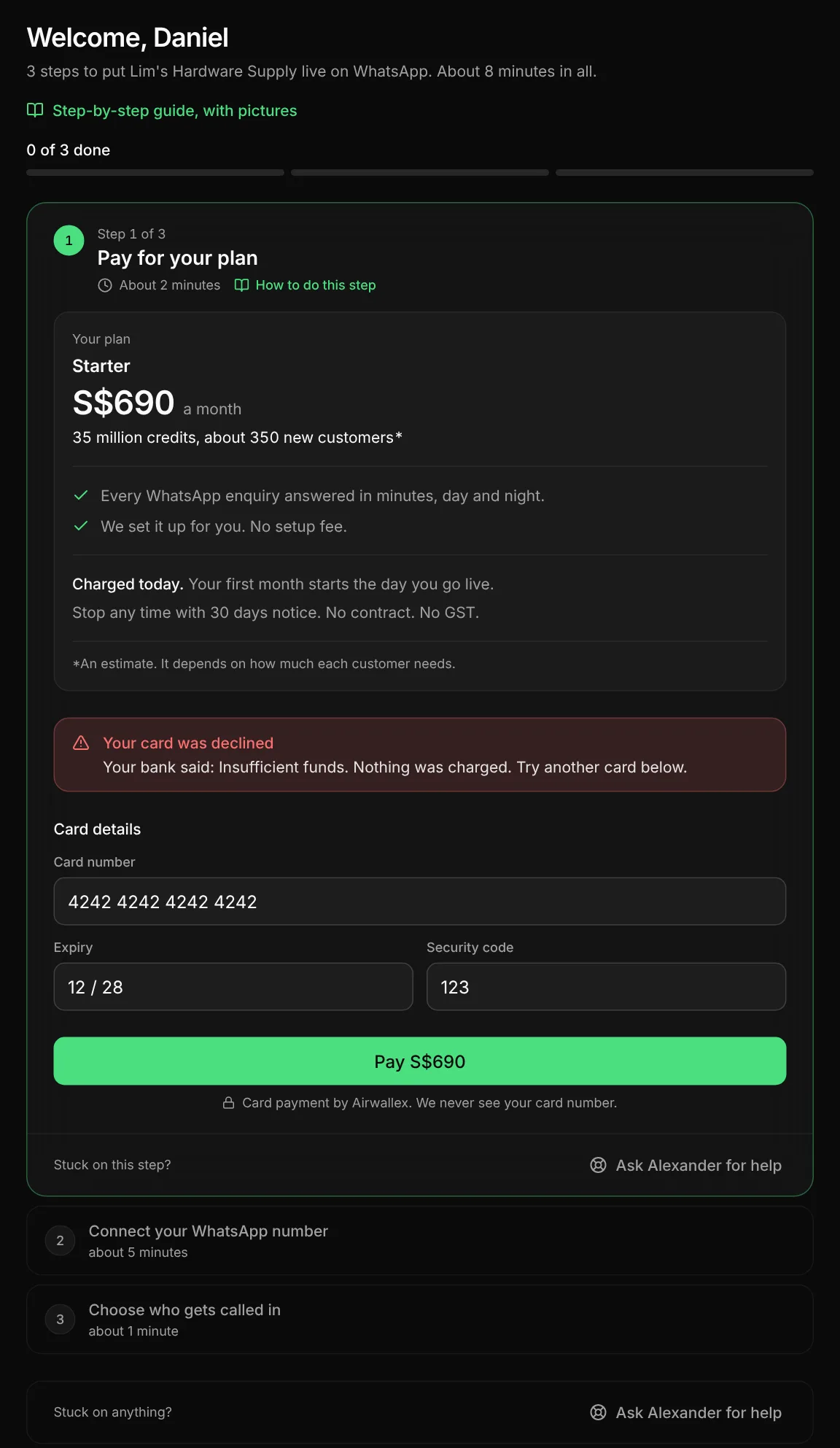
FixYour card was declined
The step shows the reason from your bank. If your bank did not give a reason, it says Your bank did not give a reason.
- Nothing was charged.
- Type a different card on the same screen.
- Tap Pay again.
FixYour bank has not answered yet
The connection to your bank stopped before the bank answered. The step says Your bank has not answered yet.
- Tap Try again. The next tap reads the answer from your bank.
- You are never charged two times.
If your bank's check stays open, a new payment can wait for up to 1 hour. Do not wait: ask for help. 41 Labs can clear it for you.
2Connect your WhatsApp number
About 5 minutesThis is the number your customers message. There are two paths:
- Your number is on the WhatsApp Business app today. Choose Keep the WhatsApp Business app. This is the default path.
- Your number is not on WhatsApp. Choose My number is not on WhatsApp.
Keep the WhatsApp Business app (the default path)
Use this path when your number is on the WhatsApp Business app today. The step shows this path first. Choose Keep the WhatsApp Business app.
Do not delete your WhatsApp account on this path. You keep the app and your chats.
Have these ready:
- The phone with the WhatsApp Business app. Update the app to the latest version first.
- A Facebook login that is an admin of your business.
Tap Keep the WhatsApp Business app. A Facebook window opens. Do each step it shows. Keep the phone with the app near you: the app also shows steps to do.
You keep the app on your phone. The AI answers on the same number. When you reply to a chat from the app, the AI stops in that chat.
After you connect: 3 rules
- Turn off the Greeting message and the Away message in the WhatsApp Business app.
- Do not reply from WhatsApp for Windows or from a WearOS watch. Reply from the app on your phone.
- Open the WhatsApp Business app on your phone at least one time every 14 days.
If the Facebook window closes early on this path
- Choose your business, Choose your WhatsApp account, Fill in your business profile or Allow access. Use the same fixes as the other path: see Closed at a business screen.
- Add phone number. This usually means the number is not on the WhatsApp Business app, or the app is out of date. Update the WhatsApp Business app on the phone, then tap Start again. If the number is not on WhatsApp, choose My number is not on WhatsApp.
- Verify your number. This usually means the step in the WhatsApp Business app did not finish. Keep the phone with the app near you, tap Start again, and do each step that the app shows.
My number is not on WhatsApp
Use this path only when your number is not on the WhatsApp app or the WhatsApp Business app. Choose My number is not on WhatsApp.
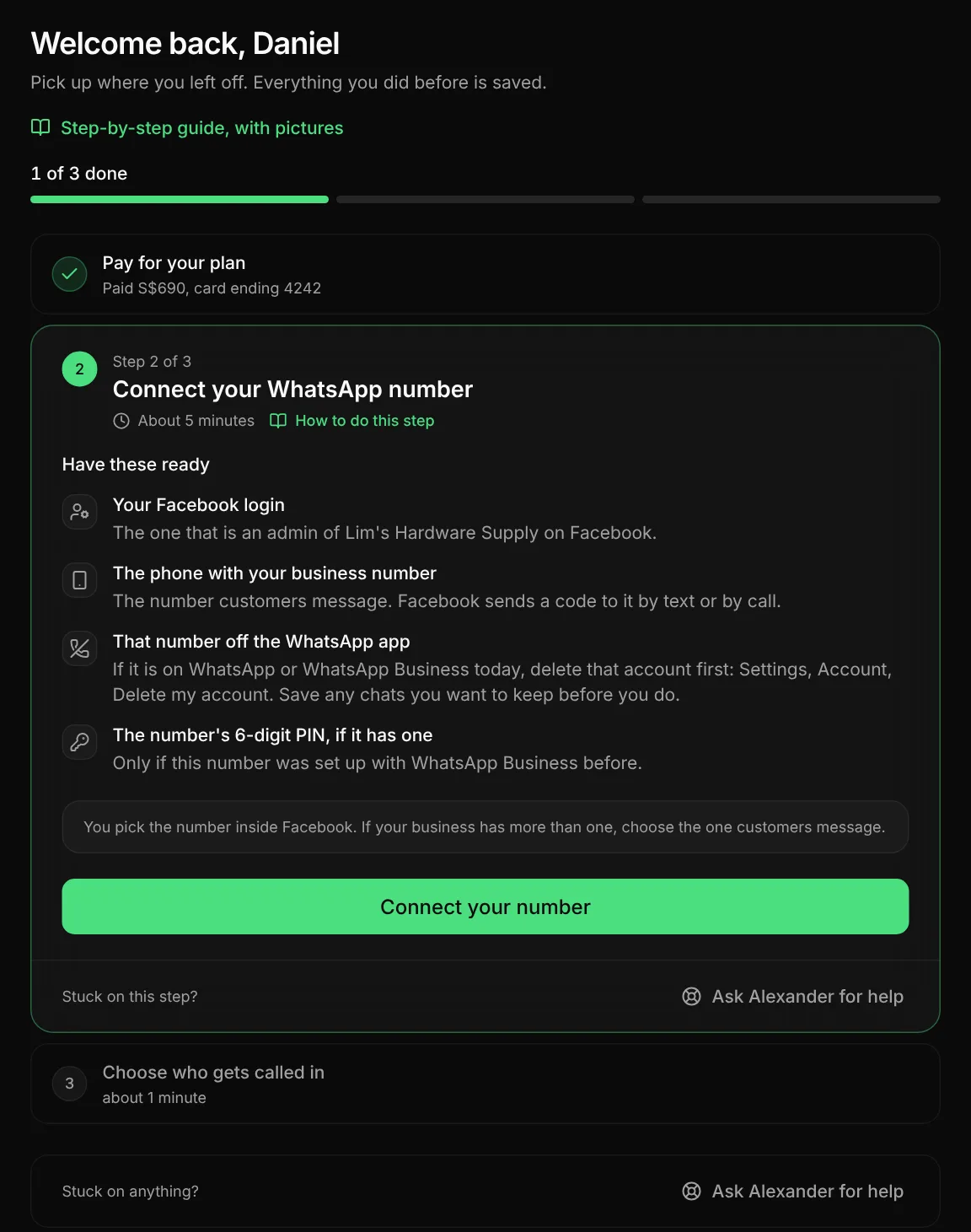
Have these ready
- Your Facebook login. It must be an admin of your business on Facebook.
- The phone with your business number. Facebook sends a code to it, by text or by call.
- That number off the WhatsApp app and the WhatsApp Business app. If it is on one of them, open WhatsApp on that phone and go to Settings, Account, Delete my account. Save the chats you want to keep before you do this.
- The 6-digit PIN of the number, if the number was set up with WhatsApp Business before.
Do the steps in the Facebook window
Tap Connect your number. A Facebook window opens. It has these screens:
- Choose your business. Choose your business on Facebook.
- Choose your WhatsApp account. Choose the WhatsApp Business account for your business, or create a new one.
- Fill in your business profile. Type your business name as the display name, and choose a category. Customers see the display name on every message.
- Allow access. Keep every box ticked.
- Add phone number. Type your business number.
- Verify your number. Type the code that Facebook sends to the phone.
When this is done, the step shows your number and a new two-step PIN. You see the PIN one time only. Write it down and keep it in a safe place.
If the Facebook window closes early
These fixes are for both paths, except where a fix says otherwise. On the Keep the WhatsApp Business app path, use its own fixes for Add phone number and Verify your number. The step tells you the name of the screen where the window closed. We only know the screen, not the cause. Below is the usual cause and the fix for each screen.
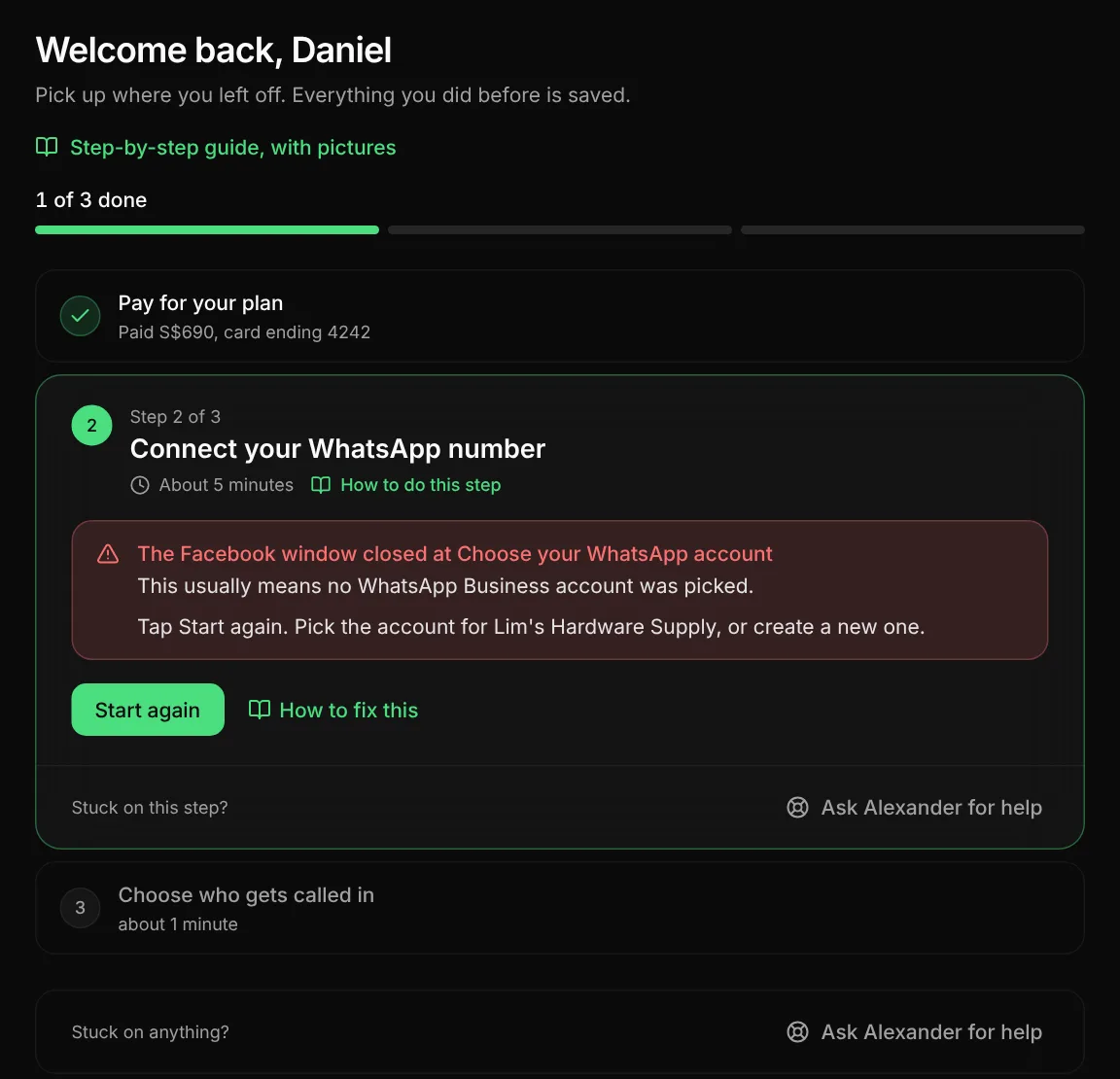
FixClosed at a business screen
These are the screens Choose your business, Choose your WhatsApp account, Fill in your business profile and Allow access.
- Choose your business. Usually your Facebook login is not an admin of the business. Ask the person who set up your Facebook business page to make you an admin, or log in with their account. Then tap Start again.
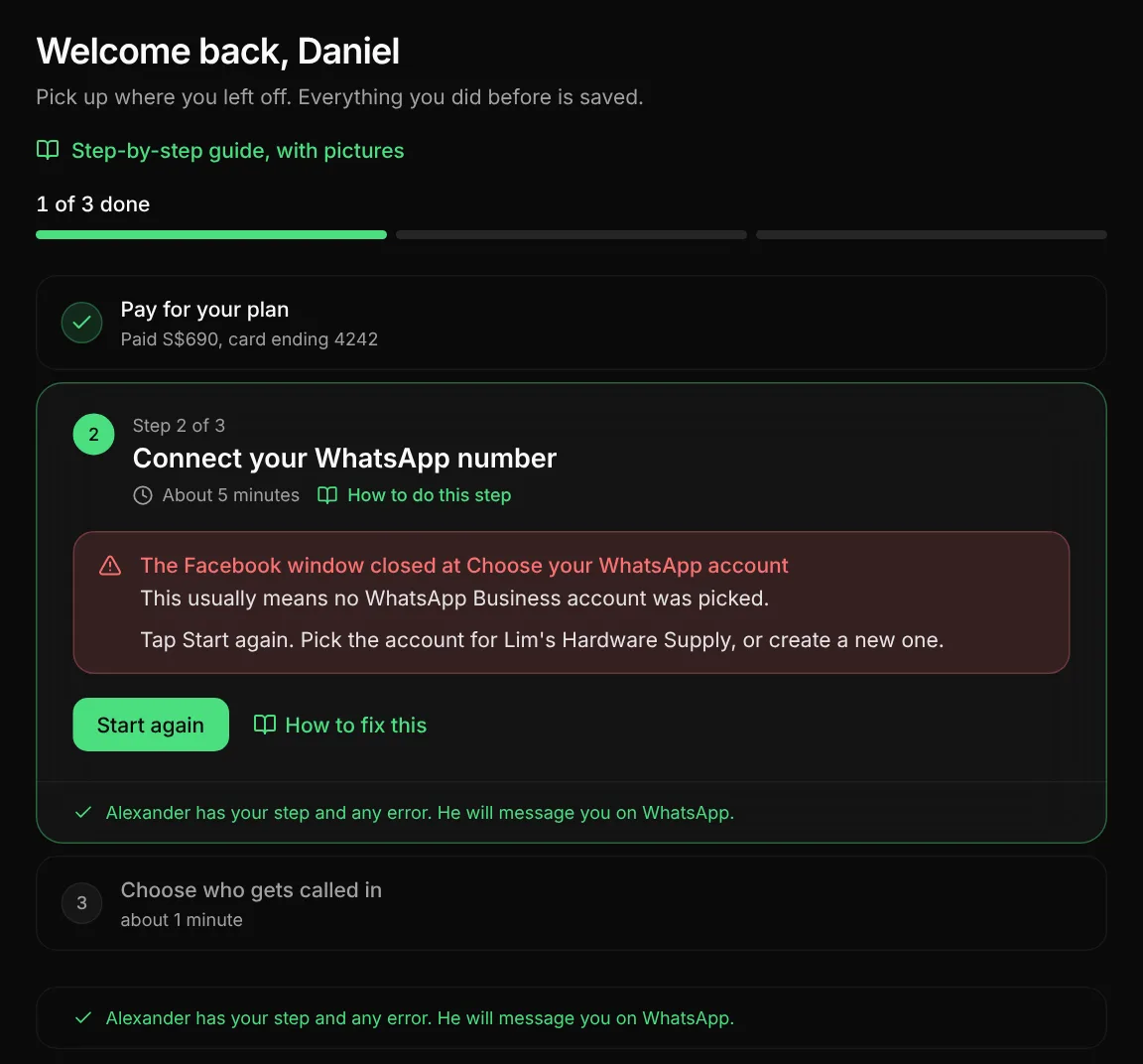
- Choose your WhatsApp account. Usually no WhatsApp Business account was picked. Tap Start again. Pick the account for your business, or create a new one.
- Fill in your business profile. Usually the display name or the category was empty. Tap Start again. Use your business name as the display name. Customers see it on every message.
- Allow access. Usually a box on the last screen was cleared. Tap Start again and keep every box ticked. 41 Labs needs them to send and receive your messages.
FixClosed at Add phone number
Most often the number is still on the WhatsApp app or the WhatsApp Business app, or it belongs to a different Facebook account.
On the Keep the WhatsApp Business app path, do not delete your account. Read Keep the WhatsApp Business app instead.
- The number is on the app. Open WhatsApp on that phone. Go to Settings, Account, Delete my account. Save your chats first. Then tap Start again.
- The number belongs to a different Facebook account. Ask for help.
FixClosed at Verify your number
Usually the code did not arrive.
- Tap Start again.
- When Facebook asks how to send the code, choose a voice call.
Do not ask for one more text. Facebook limits how many texts you can get.
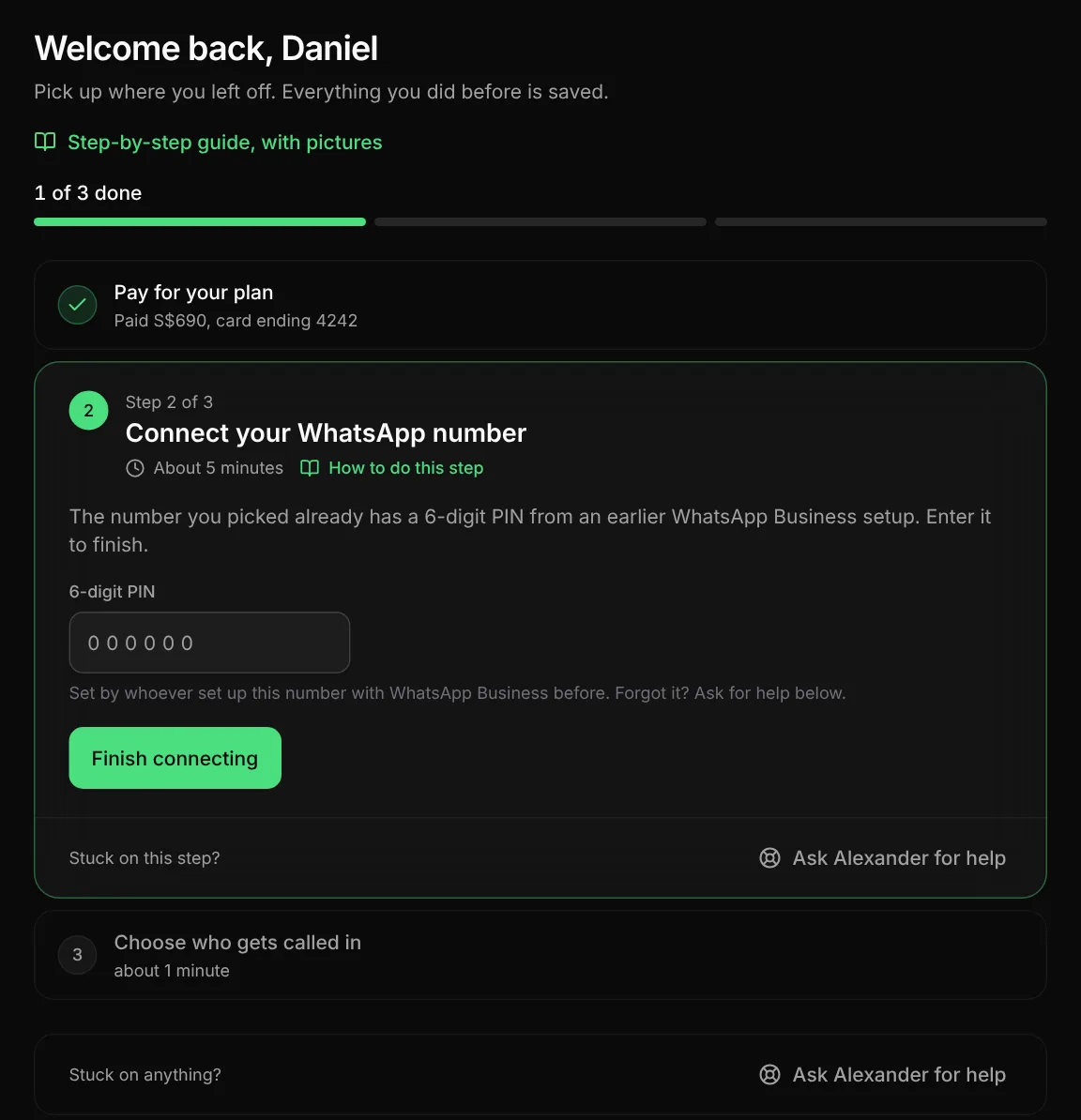
FixThe step asks for your PIN
Usually this means the number already has a two-step PIN (Meta error 133005). The step asks you for it.
- Type the 6-digit PIN.
- Tap Finish connecting. No new Facebook window opens.
If you do not know the PIN, ask the person who set up the number before. Or ask for help.
FixMeta sent an error
Usually this is a problem on the side of Meta. The step shows the message and the code from Meta, with Try again and Help.
- Tap Try again one time.
- If the error shows again, ask for help. 41 Labs sees the same code.
3Choose who gets called in
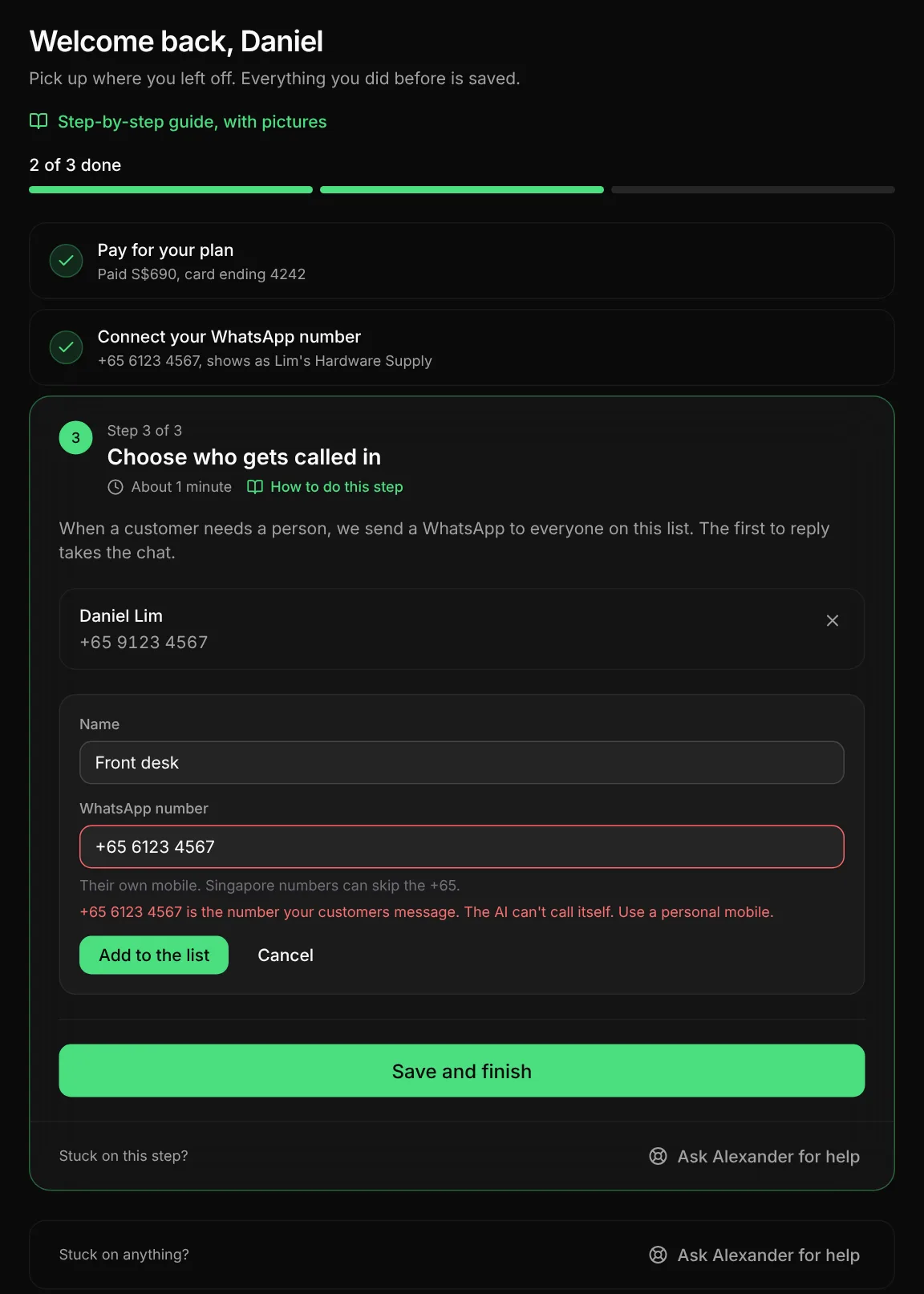
About 1 minuteSometimes a customer needs a person. Then the AI hands the chat to a person, and everyone on this list gets a WhatsApp alert.
- Add at least one personal mobile, for example +65 9123 4567. You can also type 8 digits that start with 8 or 9.
- Tap Save and finish.
You can change the list later in Settings, Team & Alerts.
FixThe number is your business number
The number your customers message cannot be on this list. The AI cannot call itself. Use a personal mobile.
After step 3: go live
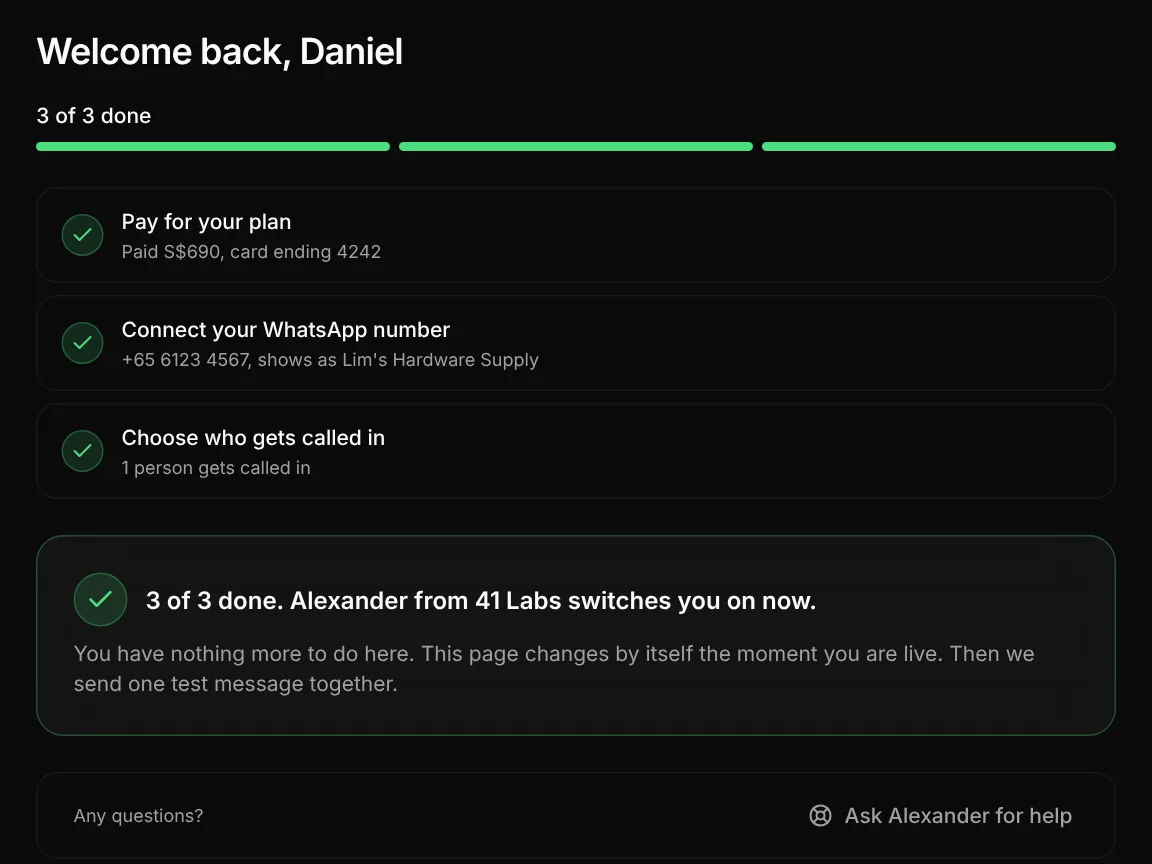
When 3 of 3 are done, your 41 Labs contact switches you on. You have nothing more to do on this screen. The screen changes when you are live.
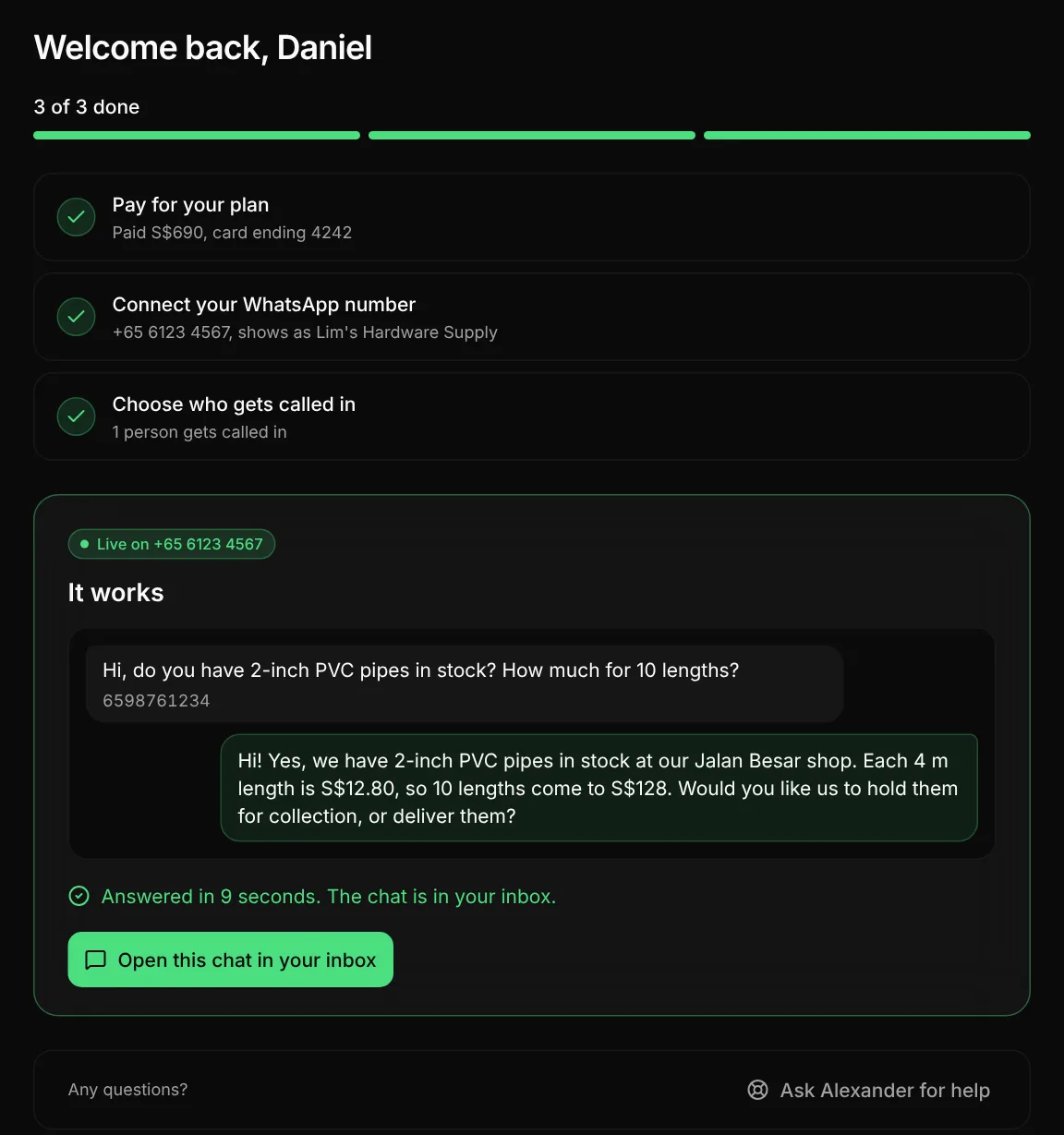
Then do one test:
- Take a different phone.
- Send one message to your business number.
- The AI answers in seconds. The chat shows in your Inbox.
Get help
Each step has a button Ask <your contact> for help. Tap it. It sends 41 Labs your step and any error, so you do not have to explain.
You can also message us on WhatsApp at +65 8012 4848.